Lan-Inspector Navigation
The function tree presents the available features in a structured, topic-based menu. Open it by clicking the menu icon in the upper-left corner. Each menu item has a tooltip that appears when you hover over it for a moment. The arrow icons let you move backward and forward through previously visited views.
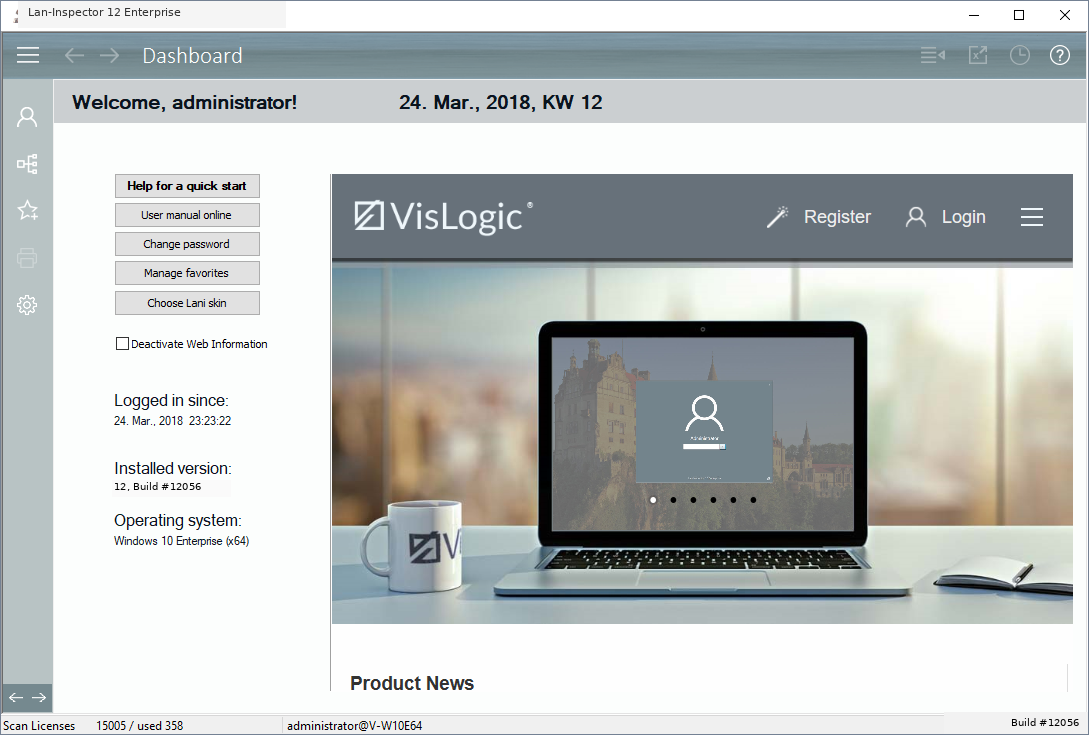
If you look at the top bar on the right side, you’ll notice four buttons. The rightmost one leads you into the Report Management. All data queries in the different Lan-Inspector views can be saved as report templates with their individual parameters. If this icon appears as active, you can save the current query as a template.
Next to it you see an icon with an X (for Excel) in a box. If the current query allows it, you can click this icon to open your results directly in Excel or Calc. Lan-Inspector creates a temporary CSV file and hands it to Excel. It is stored in the user profile's temporary folder as "templist.csv".
The Clock symbol opens the time scheduling function allowing you to automate actions. An active icon signals that time scheduling functions are running.
The round symbol with a question mark opens the context help related to the currently used function.
The uppermost treelike icon in the left bar leads you to the location management view (location tree and network search). This view has got an own quick icon because it is likely that you’ll use it very often (search PCs, assign them, scan them and organize the structure).
Below you see a user icon you can click on to get to the dashboard.
Clicking the star icon will add the current view to your favorites. In the Enterprise Edition, each user has his own favorites list. Favorites grant quick access to your most used functions.
The printer icon simply displays the current view in a print preview screen from where you can easily have it printed.
The cogwheel opens a context menu with several frontend settings:
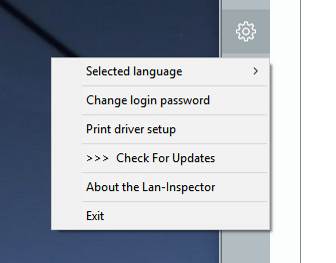
Here you can select the language of your GUI or change its appearance. Furthermore, you can change your password, set up your printer driver or look for an update of Lan-Inspector. You can also display information about the product or close the GUI by choosing "exit" if you don't want to use the corner's X.
At the bottom you see two arrows. Clicking on these will change the view of data within the current menu level.